Customer Guide
Welcome! This guide is designed to help store customers understand how to use CartWisp-enabled stores, submit customer tier classification requests, check purchase eligibility, understand product validation messages, and complete checkout successfully when store rules apply.
CartWisp is used by Shopify merchants to manage checkout governance and customer eligibility. Depending on the store’s setup, CartWisp may be used to enforce requirements such as age verification, wholesale buyer approval, product eligibility, minimum order value, quantity limits, region restrictions, shipping controls, payment restrictions, and other checkout rules.
This guide will help you understand:
- How to sign in or register before requesting tier classification
- How to find and submit the Customer Tier Classification Request form
- How the approval process works
- How assigned Customer Tiers affect checkout eligibility
- How product validation messages work on product pages
- Why checkout may be blocked or restricted
- How to resolve common checkout issues
- How automated email notifications keep you informed
Let’s walk through the customer experience step by step.
Self Sign-In and Registration
Before requesting tier classification or accessing eligibility-based checkout options, you may need to register or sign in to the Shopify store using the store’s native customer account flow.
If you are visiting the store for the first time, create an account using the store’s sign-up option. If you already have an account, sign in using the same email address you normally use for purchases.
Once logged in, you may be able to:
- Submit a Customer Tier Classification Request
- Track the status of your submitted requests
- View assigned Customer Tiers
- Access eligible products or checkout options based on your tier
- Complete checkout if your order satisfies the store’s rules
Eligibility-based checkout rules usually apply to the customer account that was classified or approved. If you submit a tier classification request using one email address but shop using another account, your assigned tier may not apply at checkout.
Accessing CartWisp & Requesting Tier Classification
Some products or checkout options may only be available to customers who are classified into a specific Customer Tier. For example, a store may require customers to be classified as Above 18 before purchasing age-restricted products, or classified as Wholesale Buyer before placing wholesale orders.
CartWisp allows merchants to create Customer Tiers based on the store’s eligibility requirements. To qualify for a tier, you may need to submit a Customer Tier Classification Request through the store’s request form.
By submitting the request, you provide the store with the information or supporting documents needed to review your eligibility. Once approved, your assigned tier can be used by CartWisp rules to determine whether you are eligible to purchase certain products, use certain payment methods, select certain shipping methods, or complete checkout under specific conditions.
How Customers Can Find the Classification Form
Merchants using CartWisp may display the Customer Tier Classification Request option in different areas of their storefront.
Common placements include:
-
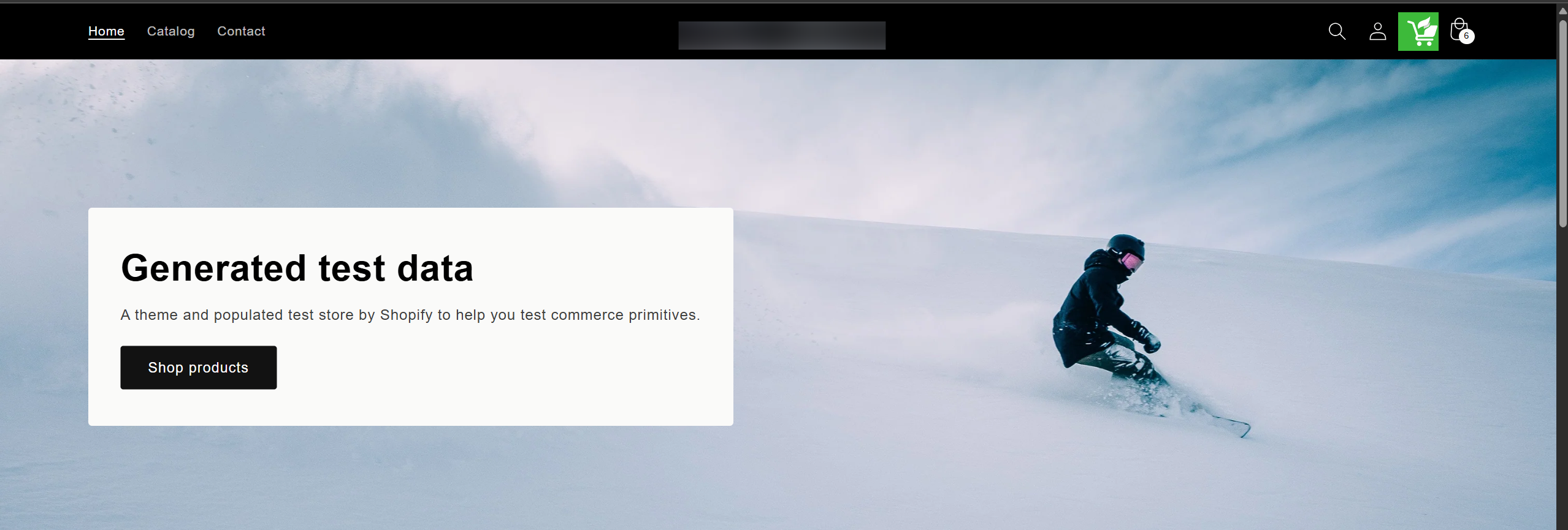
Header: Often shown in the top navigation header bar as link or icon for easy access.
-
Footer: Commonly placed in the footer section as text link or icon so customers can access it from any page.

-
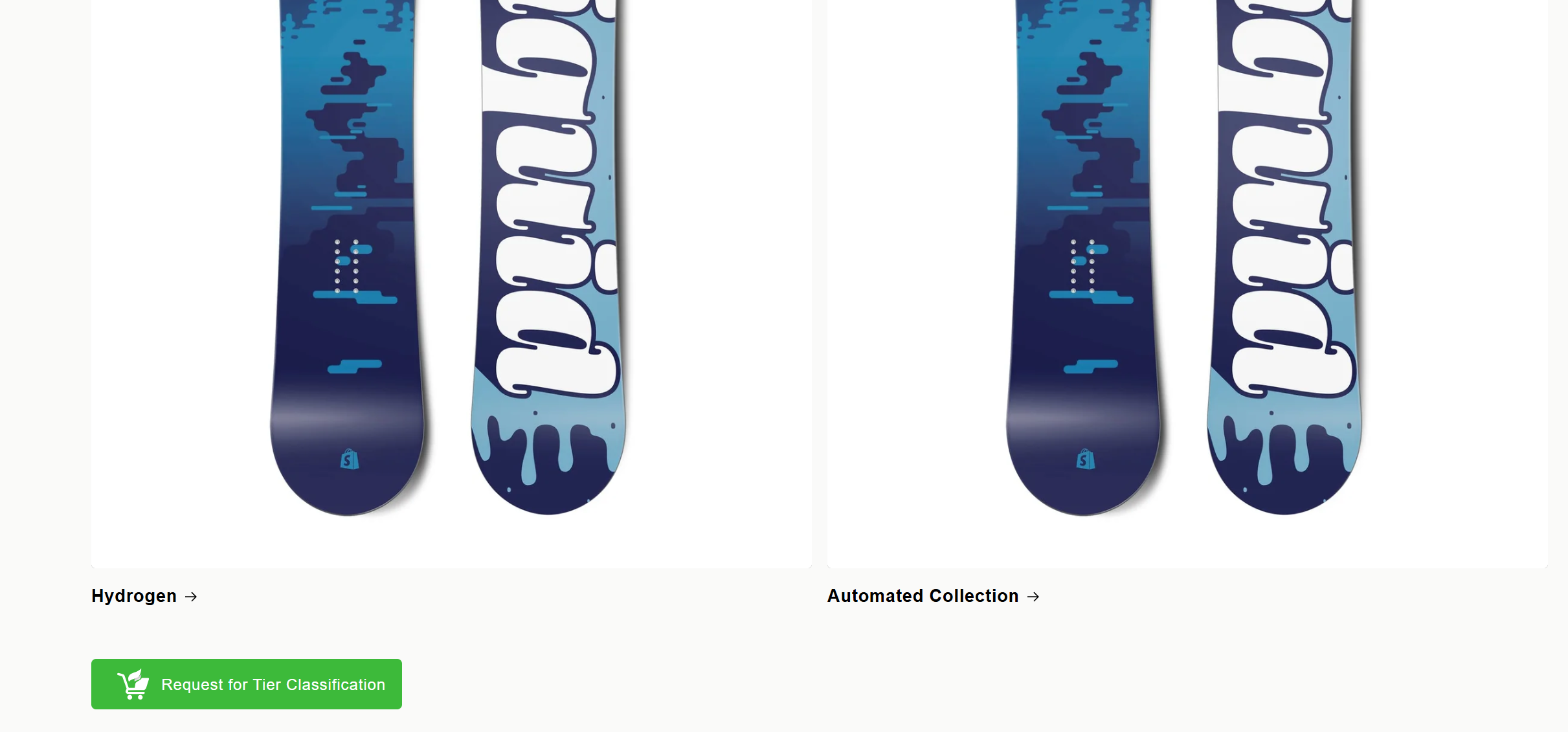
Homepage Section: Used when tier classification is important for a large portion of the store’s customers.
-
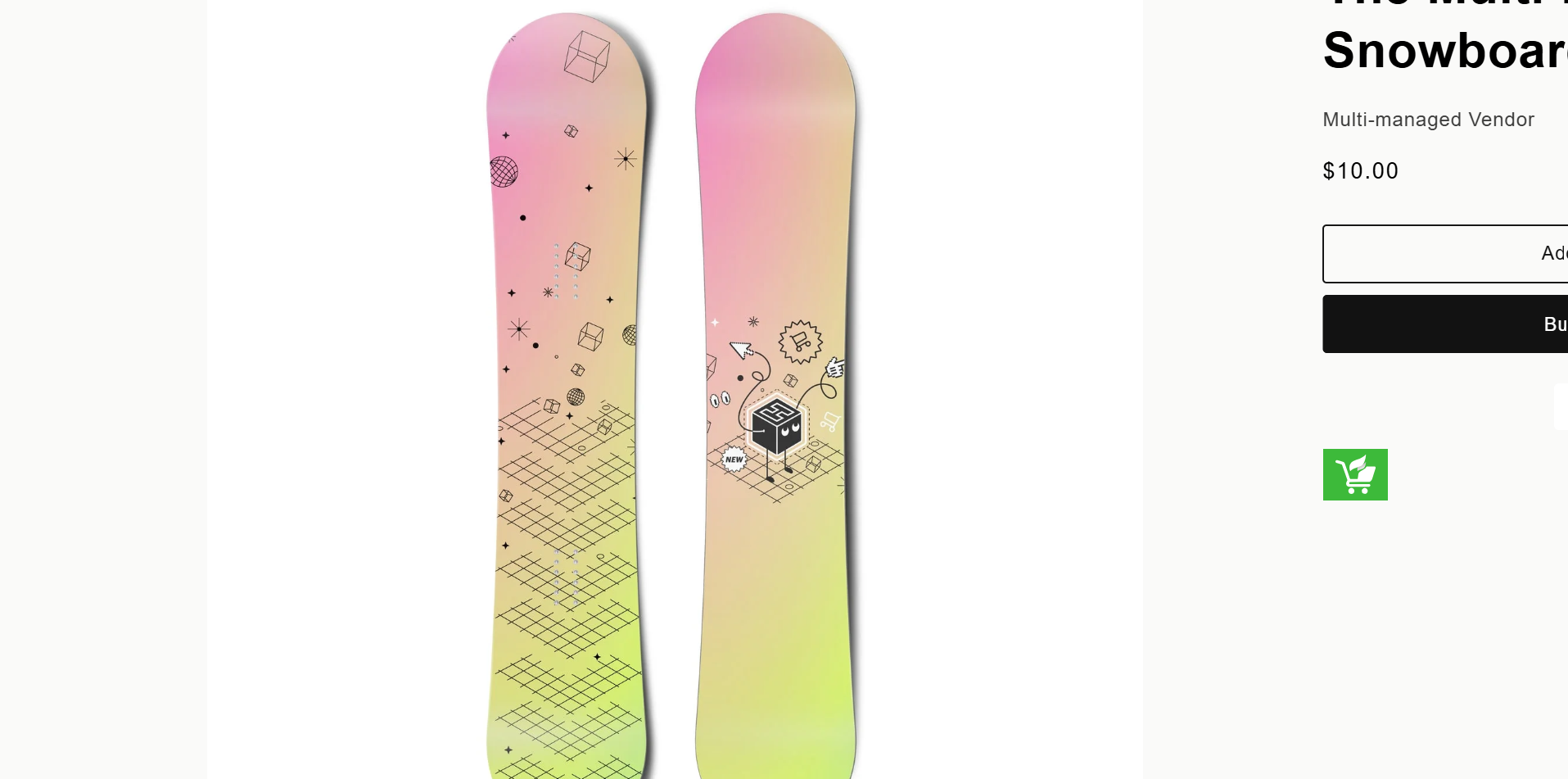
Product Page: Often used for restricted, regulated, wholesale-only, or eligibility-based products.
-
Account Page: Useful for logged-in customers who want to manage their classification status.
-
Dedicated Tier Classification Page: Some stores may create a dedicated page explaining eligibility requirements and linking to the request form.
Clicking on the request option will open the Customer Tier Classification Request form.
Customer Tier Classification Request Form
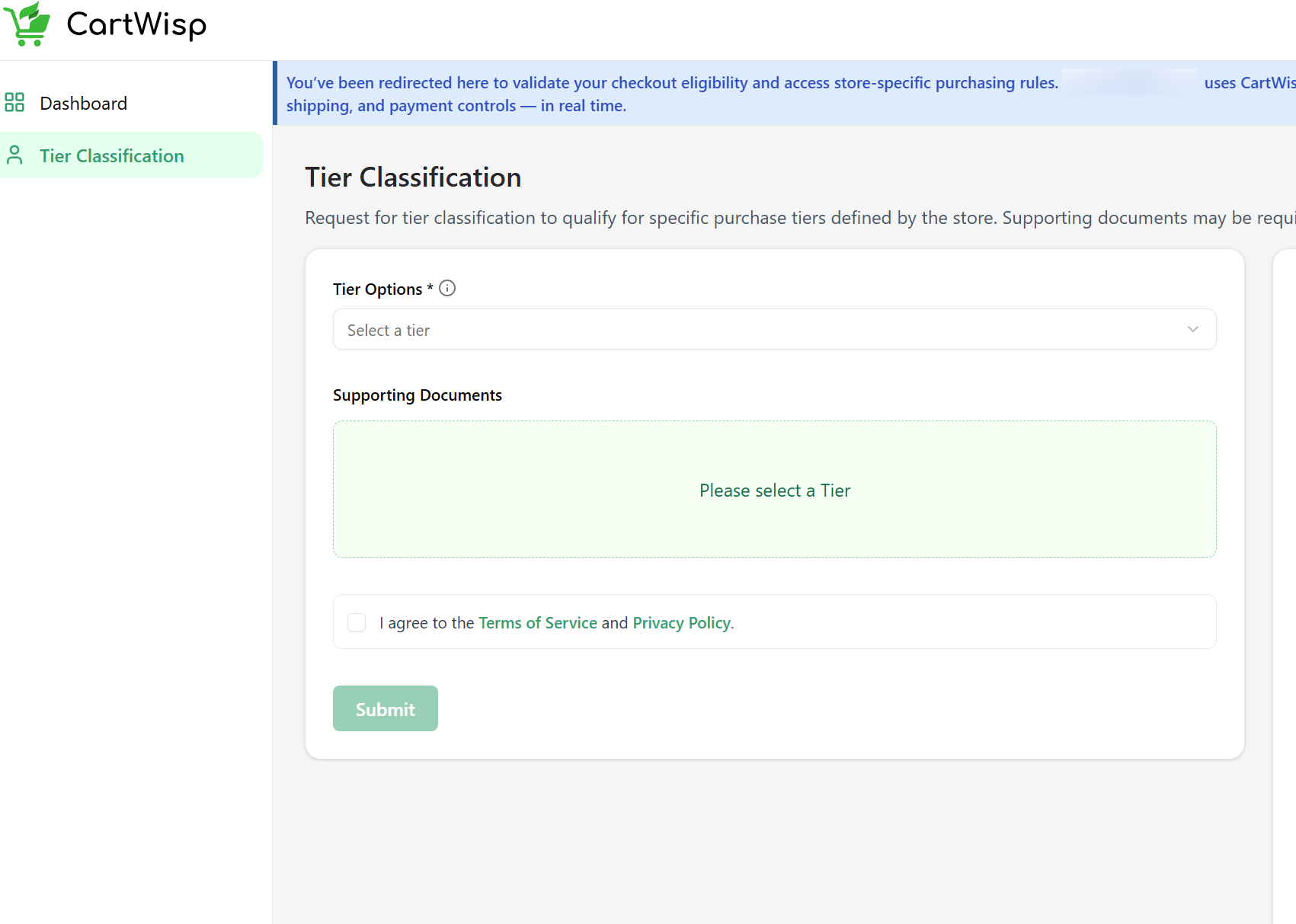
The Customer Tier Classification Request form allows you to request approval for a specific tier defined by the store.
The fields shown on the form commonly include:
-
Customer Tiers dropdown
-
Supporting Document Upload
-
Additional notes or instructions
-
Submit button
Selecting a Customer Tier
In the classification form, select the Customer Tier you want to be classified into.
Examples may include:
- Above 18
- Wholesale Buyer
- Verified Business Buyer
- Licensed Buyer
- Approved Distributor
- Restricted Product Buyer
Choose the tier that matches your eligibility and purchase requirement.
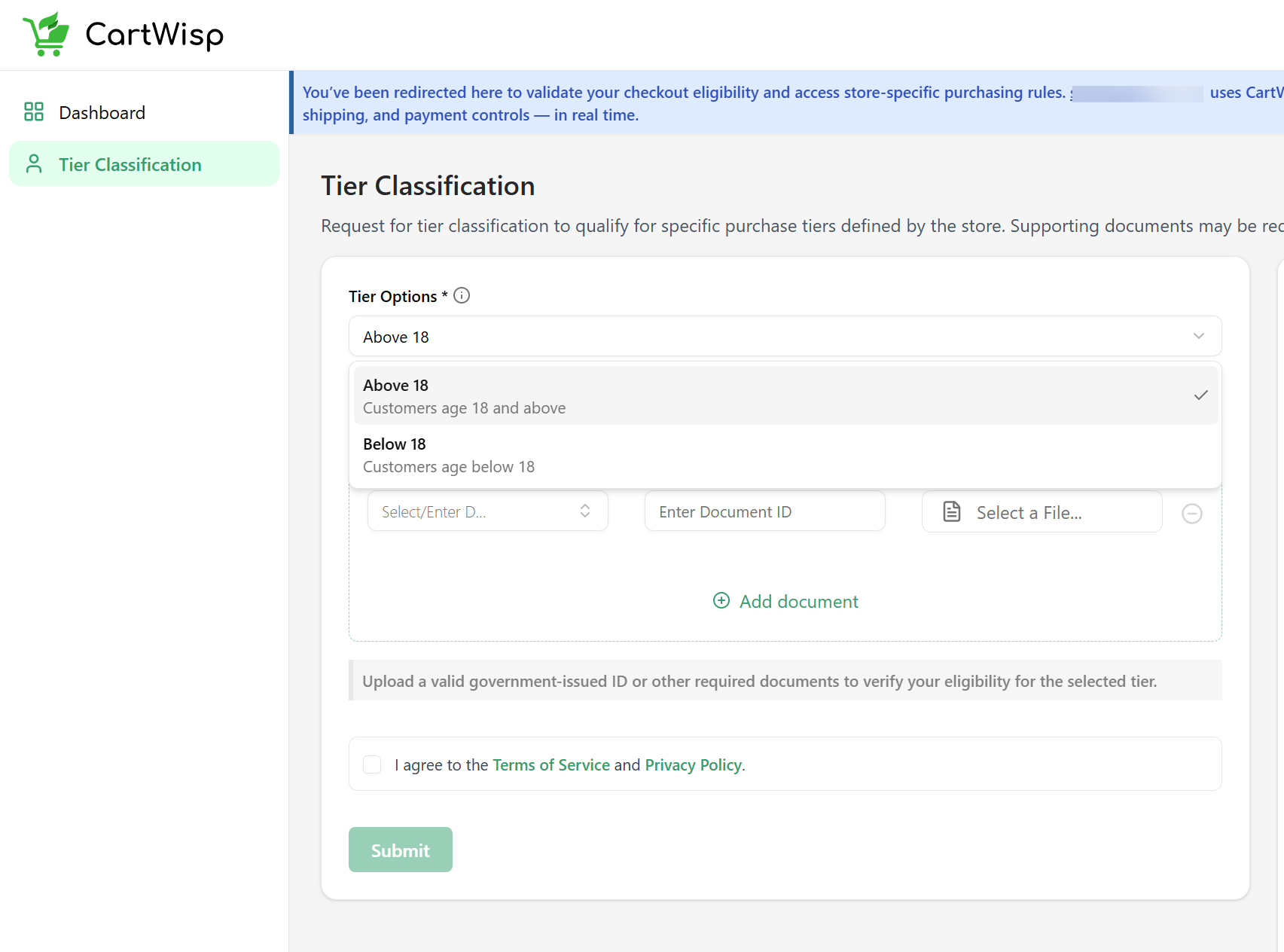
For example, if you want to purchase an age-restricted product, select Above 18 if that is the tier required by the store. If you are buying on behalf of a business, select Wholesale Buyer or Verified Business Buyer, depending on the available options.
If no tiers appear in the dropdown, the store may not have enabled any Customer Tiers yet. In that case, you may need to contact the store directly for assistance.
Uploading Supporting Documents
Some Customer Tiers may require supporting documents before approval.
Examples of supporting documents may include:
- Government-issued ID
- Business registration document
- Reseller permit
- Purchase authorization letter
- Professional license
- Distributor agreement
- Other eligibility proof requested by the store
For age verification, the store may request a valid government-issued ID to confirm that you qualify for the required age tier, such as Above 18.
For business verification, the store may ask for documents that prove your company or purchasing authority.
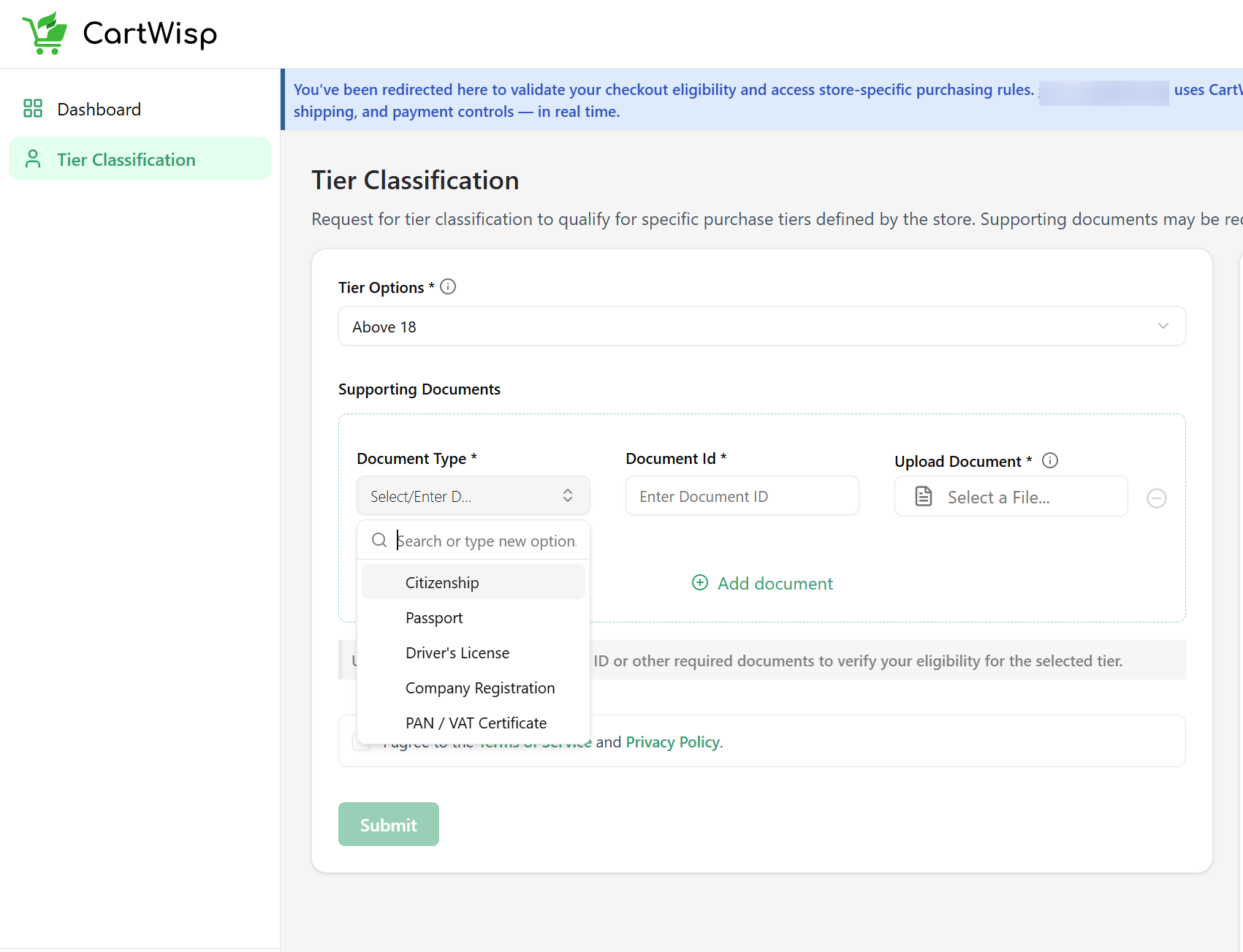
Before uploading documents, make sure they are:
- Clear and readable
- Not expired
- Relevant to the selected tier
- Uploaded in an accepted file format
- Matching the information in your customer account, if required
A document that is unclear, incomplete, expired, or unrelated to the requested tier may lead to rejection.
Submitting the Request
After selecting the Customer Tier and uploading any required document, click the submit button to send your request to the store.
Once submitted, your request status will usually become Pending until the store reviews it.
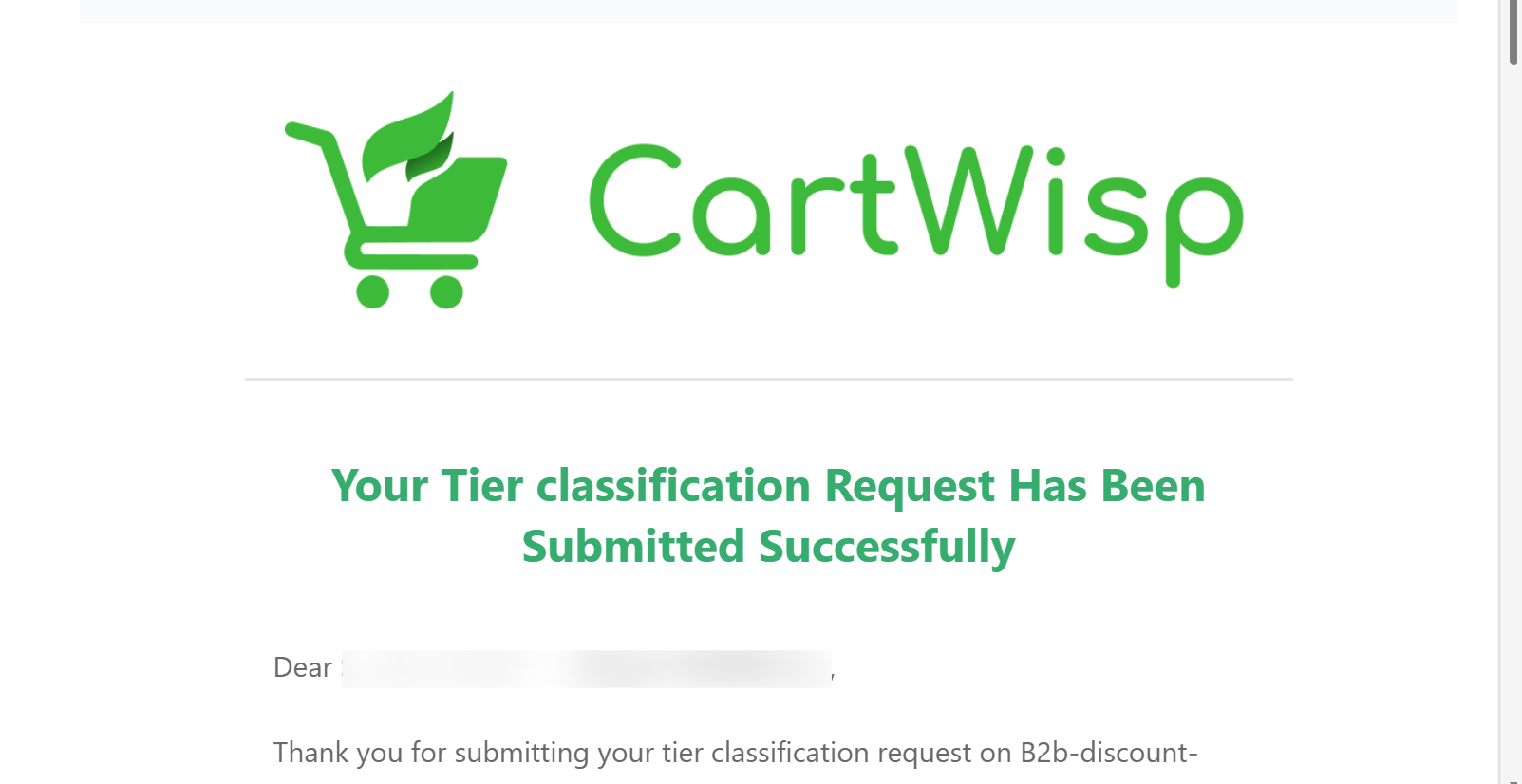
You may also receive an email notification confirming that your request was submitted successfully.
Accessing the Customer Dashboard
You can access the customer dashboard on CartWisp where you can view your tier classification status, request history and assigned tiers.
The customer dashboard helps you track:
- Submitted classification requests
- Pending requests
- Approved requests
- Rejected requests
- Revoked classifications
- Assigned Customer Tiers
This allows you to understand whether you are currently eligible for certain products or checkout conditions.
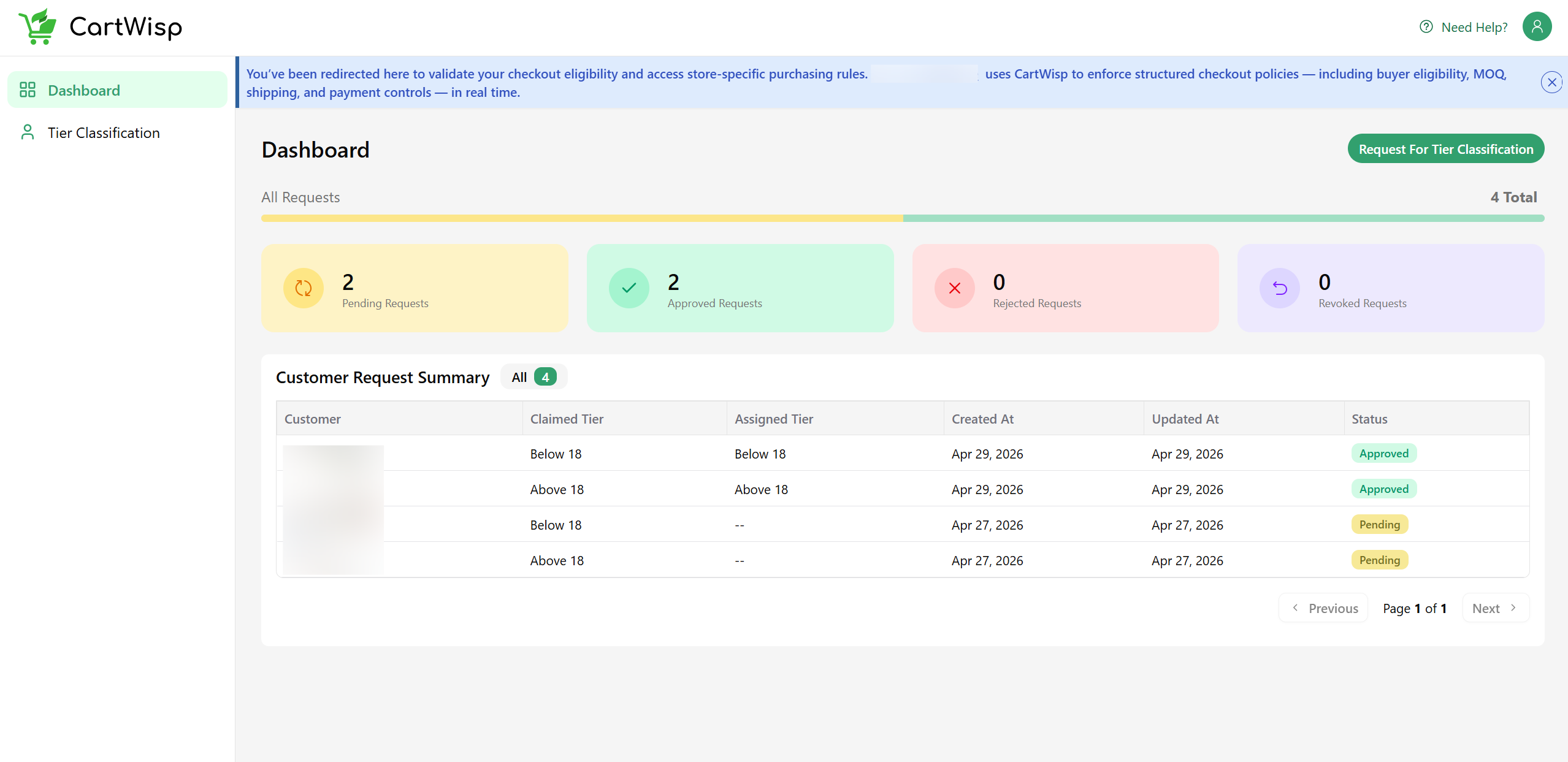
Example:
- Tier Name: Above 18
- Description: Customers who are verified to be 18 years or older.
- Region: US
- Status: Approved
If no tier has been assigned yet, this usually means your request is pending, rejected, revoked, or not yet submitted.
Approval & Tier Assignment Flow
After you submit a Customer Tier Classification Request, the store reviews the request based on its internal requirements.
The review process may be automatic or manual depending on the store’s CartWisp settings.
Auto vs Manual Approval: What It Means for the Customer
Stores may configure customer tier classification approval in one of two ways.
Auto Approval
If auto approval is enabled, the system may approve requests automatically based on the store’s configuration. This may happen when the store does not require manual document review or when the request meets predefined approval conditions. In this case, your Customer Tier may be assigned shortly after submission.
Manual Approval
If manual approval is enabled, the store’s admin team reviews your request before making a decision.
This may involve checking:
- Selected Customer Tier
- Uploaded documents
- Customer details
- Store eligibility criteria
- Compliance or business requirements
Manual review time depends on the store’s internal process. Some stores may review requests quickly, while others may take longer depending on volume or complexity.
What Happens When Your Request Is Approved
When your request is approved:
- Your account is assigned to the approved Customer Tier.
- CartWisp can recognize your tier during checkout.
- You may become eligible to purchase restricted products.
- Certain shipping or payment options may become available.
- Rules connected to your tier may allow checkout to continue.
Example:
- If you are approved for the Above 18 tier, you may be allowed to purchase products that require age verification, provided your cart also satisfies all other store rules.
Notification of Approval, Rejection, or Revocation
CartWisp-enabled stores may send automated emails when your request status changes.
You may receive notifications for:
-
Request Submitted
Confirms that your classification request has been received.
-
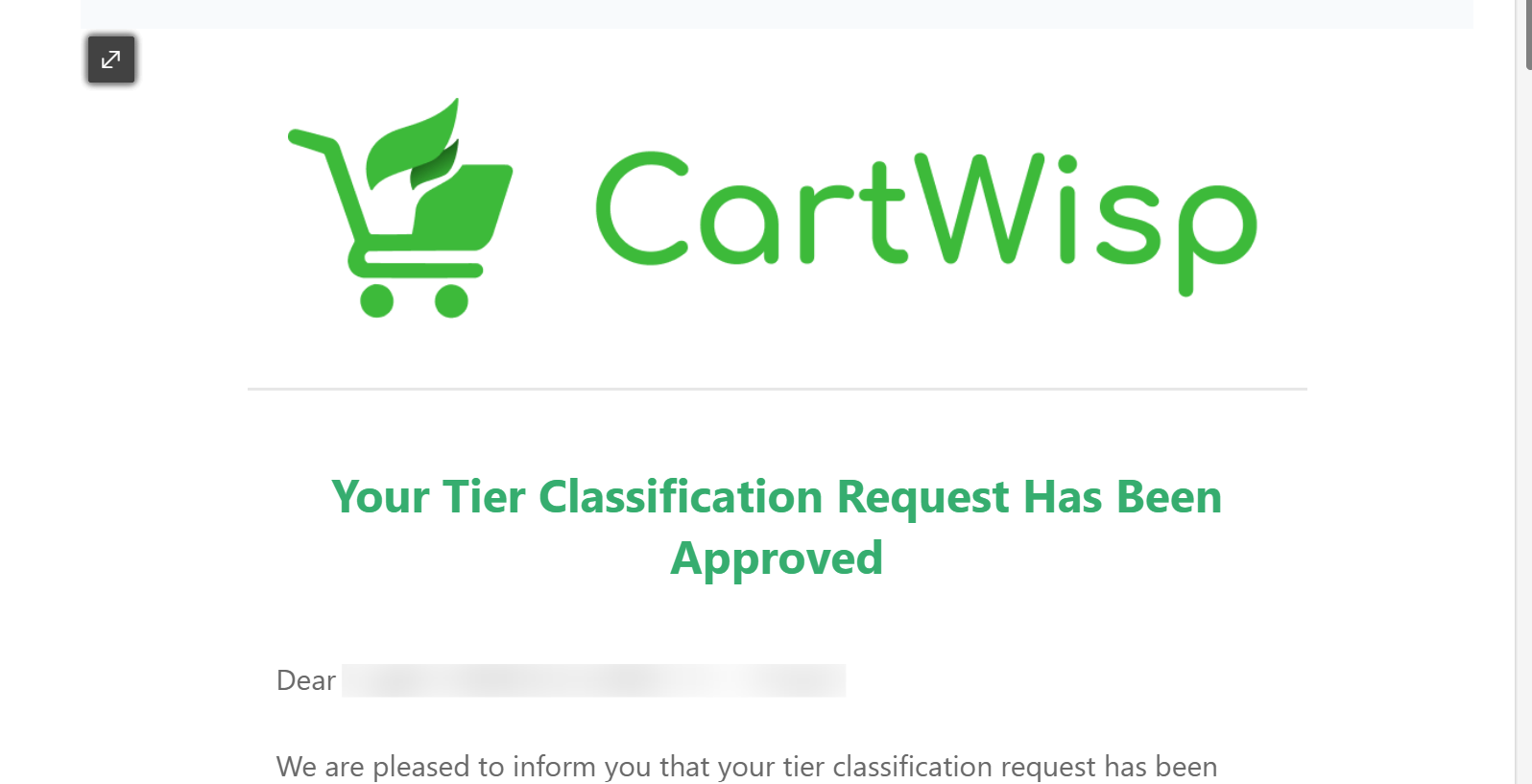
Request Approved
Confirms that you have been assigned to the requested Customer Tier.
-
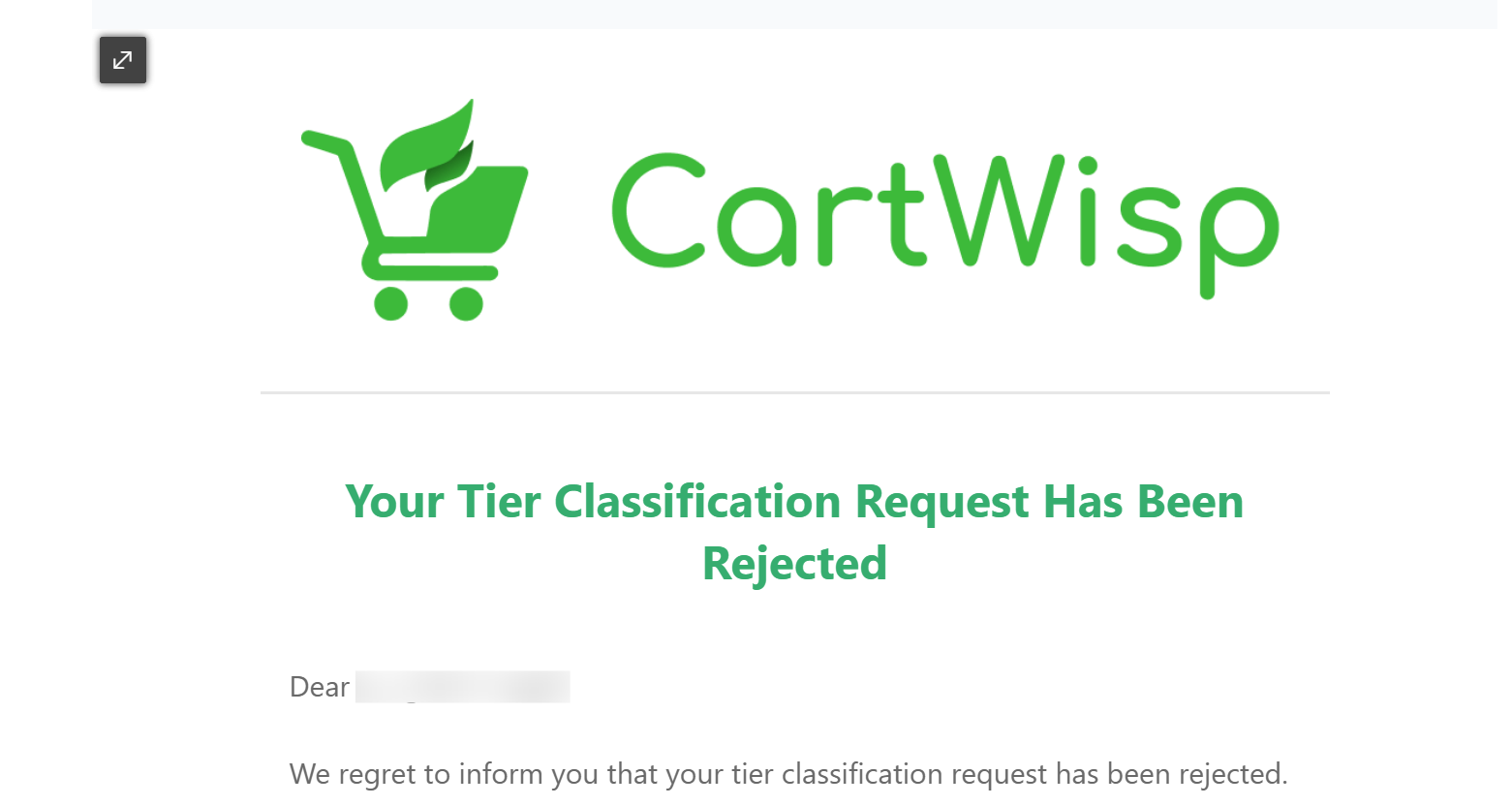
Request Rejected
Informs you that your request was not approved. The store may include a rejection reason.
-
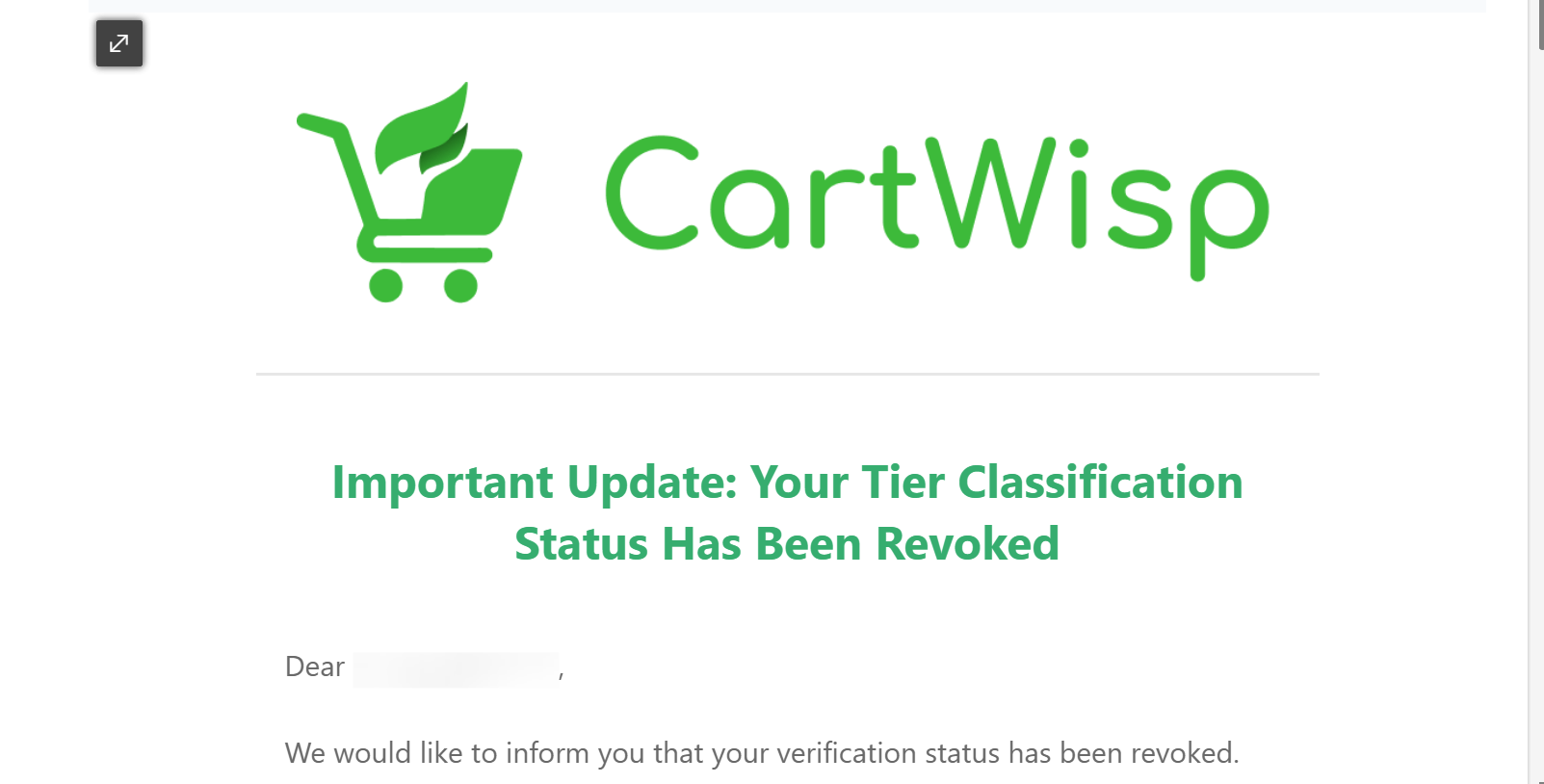
Tier Classification Revoked
Informs you that a previously approved classification has been removed.
These emails help you stay informed about your eligibility status.
Product Validation on Product Pages
Some CartWisp-enabled stores may display product validation information directly on product pages using the Product Validation Extension.
This helps you understand whether you are eligible to purchase a product before reaching checkout.
What You May See on Product Pages
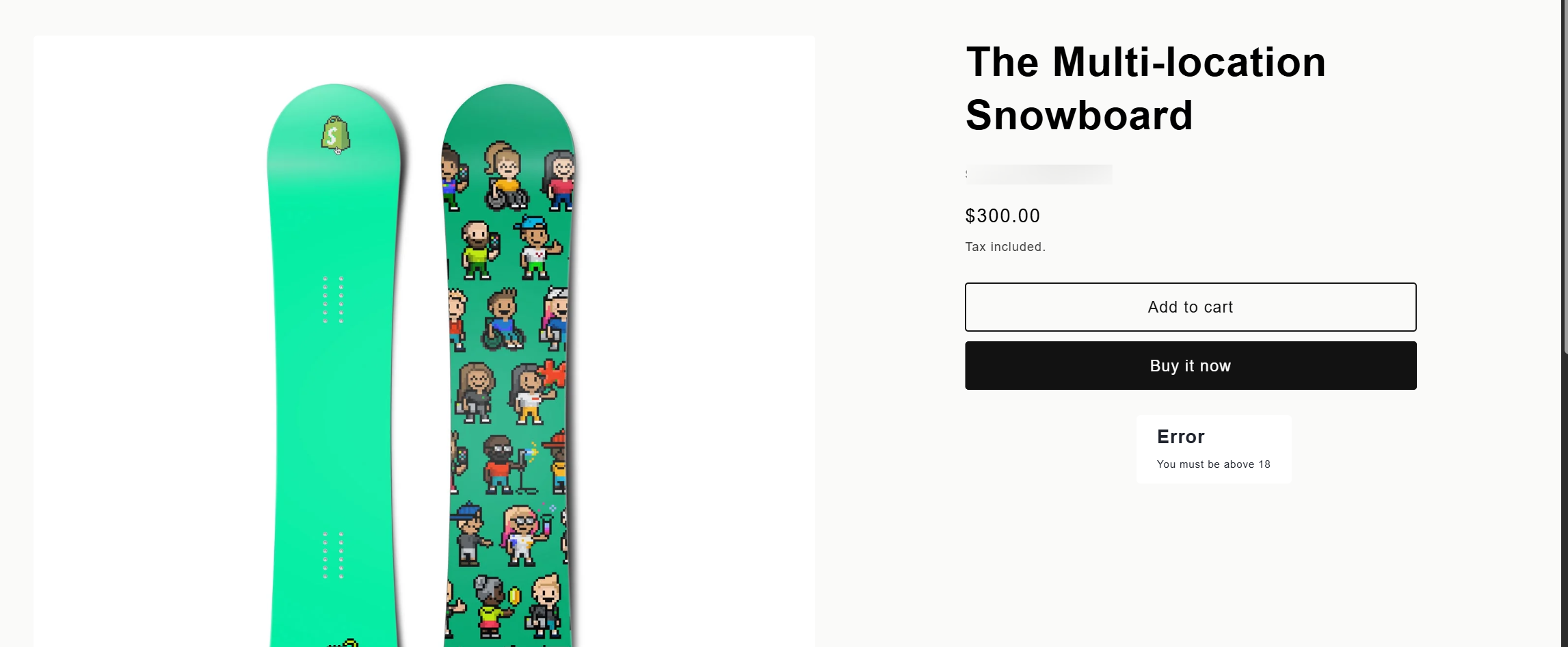
Depending on the store’s configuration, the Product Validation Extension may show messages such as:
- You are eligible to purchase this product.
- This product requires Above 18 classification before purchase.
- This product is available only for Wholesale Buyers.
- This product may be restricted based on your region.
- Submit a tier classification request before purchasing this product.
- This product has special checkout requirements.
These messages help you understand purchase requirements early in the shopping journey. Make sure you are logged in to the store to view your eligibility for the purchases.
Product Validation vs Checkout Validation
Product validation gives you early information on the product page. Checkout validation happens later when you proceed to checkout.
Even if a product page shows that you may be eligible, checkout can still be affected by other rules, such as:
- Shipping address restrictions
- Payment method restrictions
- Cart value requirements
- Quantity limits
- Product combination restrictions
- Regional restrictions
For example, you may be approved as Above 18, but checkout may still be blocked if the product cannot be shipped to your selected state.
Completing Checkout with CartWisp Rules
When you proceed to checkout, CartWisp checks whether your cart and checkout details satisfy the store’s configured rules.
Rules may evaluate:
- Total Order Value
- Product quantity
- Product eligibility
- Customer Tier
- Custom Tags
- Shipping Address
- Tax or address details, etc.
If your cart meets all required conditions, checkout continues normally.
If your cart violates a rule, CartWisp may block checkout, hide a shipping/payment option, or show a message explaining what needs to be fixed.
Understanding Checkout Messages
Checkout messages explain why checkout cannot continue or why an option is unavailable.
A good message usually tells you:
- What caused the issue
- Why the restriction applies
- What action you should take next
Examples:
- Minimum order value is $40. Please add more items to continue.
- This promotional item is limited to 1 unit per order. Please reduce the quantity to continue.
- This product requires age verification. Please submit a tier classification request before checkout.
- Cash on Delivery is not available for this order. Please select another payment method.
- We cannot ship this order to a P.O. Box address. Please enter a valid street address to continue.
Always read the checkout message carefully. It usually provides the fastest way to resolve the issue.
Common Checkout Scenarios
Scenario 1: Minimum Order Value Not Met
If the store requires a minimum order value and your cart is below that amount, checkout may be blocked.
What to do:
- Return to your cart.
- Add more products or increase quantity.
- Confirm the cart value meets the minimum requirement.
- Try checkout again.
Scenario 2: Product Quantity Limit Exceeded
If a product has a maximum quantity limit, checkout may be blocked when you add more than the allowed quantity.
What to do:
- Review the checkout message.
- Reduce the product quantity.
- Try checkout again.
This commonly applies to promotional items, limited-release products, flash sale items, or restricted inventory.
Scenario 3: Tier Classification Required
If a product or checkout option requires a specific Customer Tier, you may be blocked until you are approved.
What to do:
- Open the Customer Tier Classification Request form.
- Select the required tier.
- Upload supporting documents if required.
- Submit the request.
- Wait for approval.
- Return to checkout after approval.
Scenario 4: Restricted Region
If a product cannot be shipped to your selected country, state, PO Box, or region, checkout may be blocked.
What to do:
- Review the message carefully.
- Choose an eligible shipping address, if available.
- Remove the restricted product if needed.
- Contact the store if you are unsure about eligibility.
Accessing Eligible Products and Options
Once you are assigned to a Customer Tier, your eligibility may affect what you can purchase or access during checkout.
For example:
- Above 18 customers may access age-restricted products.
- Wholesale Buyer customers may qualify for wholesale checkout rules.
- Licensed Buyer customers may purchase restricted professional products.
- Verified Business Buyer customers may access business-specific checkout options.
However, assigned tier status does not always guarantee checkout completion. Your order must still satisfy all other active rules, including shipping, payment, cart value, quantity, and regional restrictions.
Automated Notifications
CartWisp-enabled stores may send automated email notifications at key stages of your tier classification journey.
You may receive emails when:
- Your tier classification request is submitted
- Your request is approved
- Your request is rejected
- Your assigned classification is revoked
These notifications help you stay updated without needing to repeatedly check your dashboard.
Summary
CartWisp helps Shopify stores ensure that customers, carts, products, shipping methods, payment methods, and checkout details meet the store’s requirements before an order is placed.
As a customer, you may interact with CartWisp by:
- Signing in to your account
- Submitting a Customer Tier Classification Request
- Uploading supporting documents
- Tracking approval status
- Viewing assigned Customer Tiers
- Reading product validation messages
- Following checkout messages
- Adjusting your cart, address, shipping method, or payment method if needed
These steps help ensure that your order is valid, eligible, and ready for successful processing by the store.
Need Help?
If you encounter any issues, contact the Store support team or CartWisp Support Team.